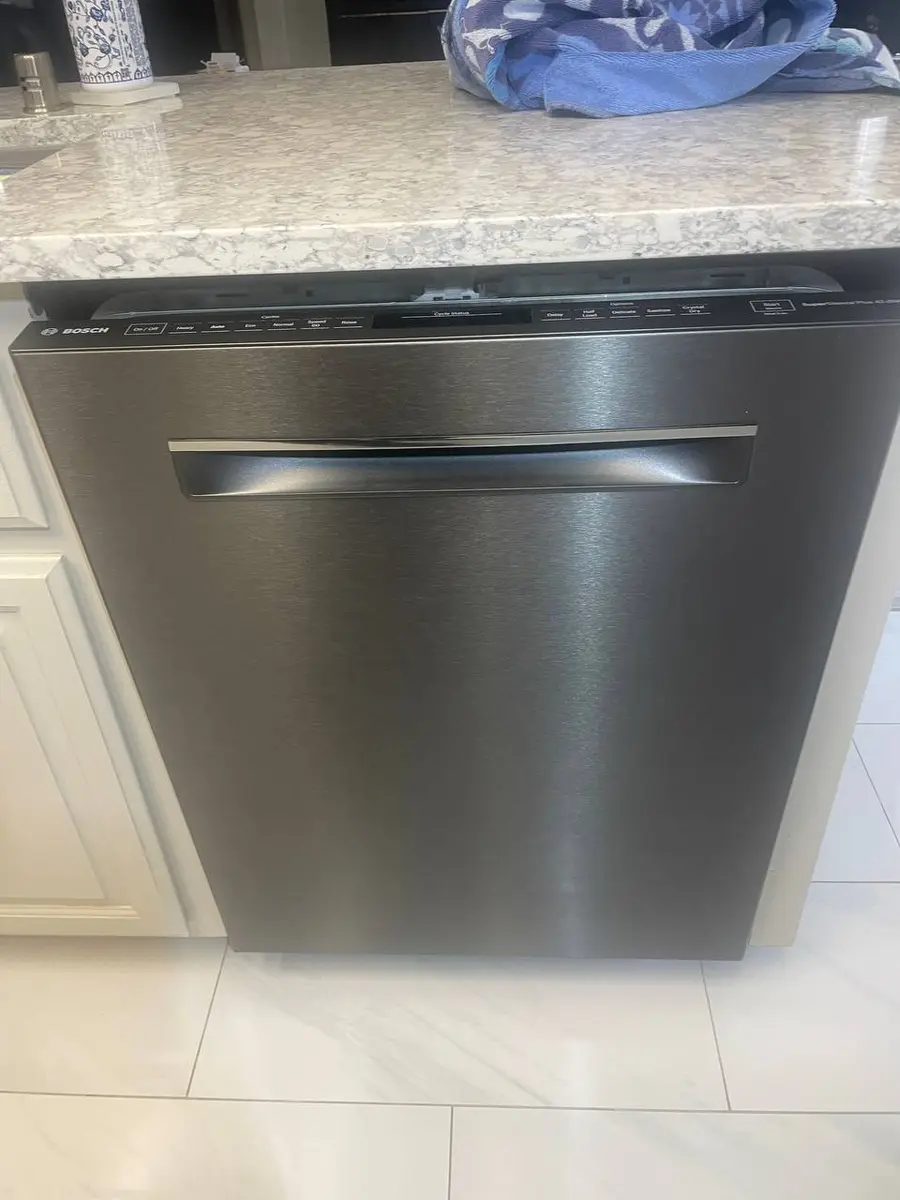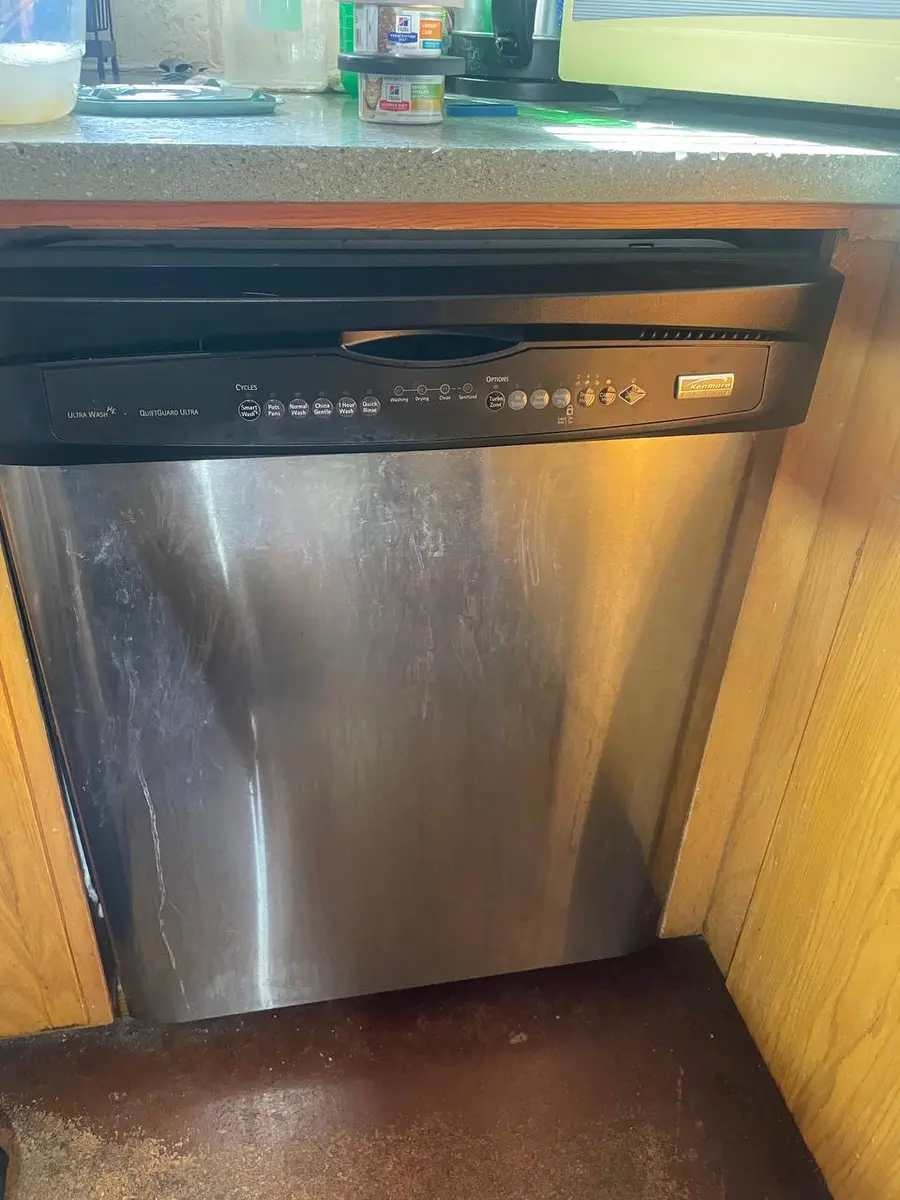
Quick Answer: Blank, or Just Unresponsive?#
Most likely, a Maytag dishwasher with a dead display has one of two problems, and which one depends on the symptom. A completely blank display points to the power path — most often loose junction-box wire nuts, then a failed control board, then simply a tripped breaker or GFI. A display that lights but ignores your touches points instead to the touchpad membrane or its ribbon cable. Before either, rule out the simplest thing: Control Lock, engaged by holding the Lock button for three seconds, disables all display feedback and button response, and its indicator LED can be so dim it is missed.
Cause-by-Symptom Table#
| What you see | Most likely cause | Fix |
|---|---|---|
| Fully blank display | Loose junction-box wiring | reseat the wire nuts behind the kick panel |
| Blank after a storm or outage | Control-board surge damage | hard-reset five minutes; replace if needed |
| Some segments work, others dead | LED driver on the board partly failed | replace the control board |
| Display lit, buttons do nothing | Touchpad membrane or ribbon cable | reseat or replace the membrane / ribbon |
| No feedback at all, LED dim | Control Lock engaged | hold Lock for three seconds to clear |
Do You Have the Right Tools?
Water pressure gauge ($60), spray arm tester, float switch multimeter ($85), and drain inspection camera. Our technician arrives with $3,000+ in professional tools — your diagnostic is free.
Licensed & Insured · 90-Day Warranty · Same-Day Service
The Blank Display#
When the display is completely dark, trace the power. Most blank displays are resolved simply by reseating the junction-box wire nuts, which loosen from years of vibration, so check those behind the lower kick panel first. A control board with a failed power-supply section is the next cause, and a plain tripped breaker or GFI reset accounts for the rest — so verify the household circuit before opening anything. If the blank display coincided with a lightning strike or outage, the board may have surge damage; try a hard reset, breaker off for five minutes, before condemning it. When only some cycle LEDs light regardless of the cycle selected, the board's LED-driver circuit has partially failed and the board is replaced — the individual LEDs are rarely the problem.
The Unresponsive Touchpad#
If the display lights normally but buttons do nothing, the fault is on the input side. On Maytag's membrane touchpads that means moisture behind the membrane causing false reads that lock the system, a worn membrane that no longer makes contact, or a ribbon cable that has degraded or slipped in its ZIF connector. Accessing it on MDB models means opening the door and removing the Torx T20 screws around the inner panel — supporting the heavy stainless outer panel so it does not bend the hinges — then reseating or replacing the membrane and making sure the ribbon seats fully in the connector, since a partial insertion causes exactly the flicker that often precedes total failure. Note that models built after about 2015 increasingly integrate the board and display into one assembly, which means any display fault requires the full combined part.
Safety First — Know the Risks
Live 120V wiring in a wet environment is one of the most dangerous DIY scenarios. Water + electricity = serious shock risk. Our techs are licensed and insured — let them handle the risk.
Licensed & Insured · 90-Day Warranty · Same-Day Service
Resets, Flicker, and Warranty#
A few patterns are worth knowing. Flickering is an intermittent connection, not a dead display — check the ribbon seating, the harness pins for corrosion, and the board for a developing solder crack, and address it promptly because it usually precedes failure. A scrambled display can be firmware corruption: disconnect power for ten minutes for a full capacitor discharge, and if a normal display returns it was transient, while a persistent scramble means the board. And a display that fails only when the kitchen is cold points to a marginal solder joint or aging capacitor that works warm but not cold — a board replacement resolves it. Be aware Maytag's ten-year warranty does not cover the control board or display, which fall under the one-year coverage.
Running It With a Dead Display#
If the board is working and only the display has failed, you can technically still run the dishwasher by finding the Start button from memory and pressing it, and the cycle will complete without any visual feedback. It is a reasonable stopgap for one or two loads, but not a long-term plan: with no display you cannot see error codes, confirm the selected cycle, or verify that a cycle finished, so a developing fault can go unnoticed. Treat it as a way to get through until the part arrives rather than a fix. And because a flickering display usually precedes a fully dead one, addressing the ribbon cable or connection at the first flicker often spares you from running blind at all.
The Real Cost of DIY
Average DIY attempt: $150-400 in tools you may use once, plus the risk of further damage. Our diagnostic visit costs $0 — we find the problem and give you an honest quote.
Licensed & Insured · 90-Day Warranty · Same-Day Service
Repair or Replace?#
A dead display is repairable and usually cheap — reseating wiring or a ribbon cable costs nothing, and a membrane is inexpensive, so it rarely justifies a new dishwasher. The board is the priciest outcome, which is why you rule out the junction box, Control Lock, and ribbon first. The Whirlpool-platform diagnostic mode still runs on a partly failed display and lights all LEDs, which helps confirm whether segments are dead or just not being driven. When the control board is genuinely gone, book a Maytag dishwasher repair.
Lead Appliance Repair Technician · 12 years experience
Experienced technician with 12 years specializing in washing machine and dryer repairs across all major brands.